🧩 General FAQs
1) What is OmniSpeech AI Detect™ – Deepfake Detection in Chrome?
Omnispeech AI Detect – Deepfake Detection in Chrome is a Chrome extension developed by Omnispeech that analyzes audio playing in your browser tab to detect whether a voice is likely human or potentially AI-generated (deepfake).
It captures a short audio sample and uses AI-based analysis to classify the voice authenticity.
2) How do I install OmniSpeech AI Detect™ Chrome extension?
You can install the AI Detect™ extension directly from the Chrom web store by following these steps:
-
Use this link (https://chromewebstore.google.com/detail/omnispeech-ai-deepfake-de/fdaalloapkmfoeelgbhdedlbiplcoahp/) or search for “OmniSpeech AI Detect” on the marketplace (or select the 'Download' button at the top of this page.
-
Click "Add to Chrome"
-
After installation, the app will appear in chrome extension
3) What do the color results mean?
After analysis, you will see one of the following:
🟢 Green – “Likely human voice.”
The audio appears to contain natural human voice characteristics.
🟡 Yellow – “Uncertain voice characteristics detected.”
The system detected mixed or unclear voice patterns. The result is inconclusive.
🔴 Red – “Potential deepfake detected.”
The audio contains characteristics commonly found in AI-generated or manipulated voices.
4) How many scans do I get in the Free plan?
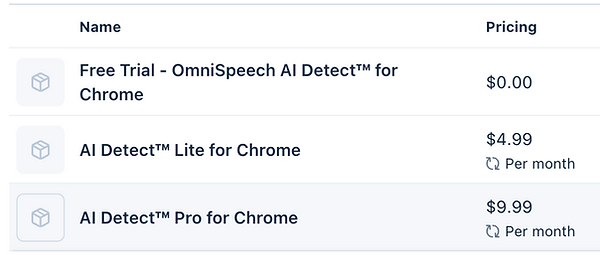
The Free plan includes 5 scans.
Once you register and verify your email, you can immediately use these 5 scans to analyze audio.
5) What are the available subscription plans?
6) How do I upgrade my plan?
Once your scans are exhausted:
-
Click the Purchase Plan button inside the extension.
-
Select your preferred plan (Lite or Pro).
-
Complete the secure payment process.
-
You will be redirected back to the extension.
-
Your scan balance and subscription details will update automatically.
7) Do unused scans roll over?
Scans are allocated based on your active subscription plan. Please refer to your subscription details inside the extension dashboard for validity and usage tracking.
8) Is sign-up required to use the extension?
Yes. To use the extension, you must:
-
Sign up with your email and password.
-
Verify your email using a One-Time Password (OTP) sent to your registered email address.
This ensures account security and proper scan tracking.
9) Why is email verification required?
Email verification via OTP:
-
Protects your account.
-
Prevents misuse.
-
Ensures accurate scan allocation.
-
Secures subscription management.
10) Does the extension record or store my audio?
The extension captures only a 4-second sample for analysis purposes. The sample is securely processed through the detection API. No continuous recording is performed.
11) What types of audio can be analyzed?
The extension works with:
-
YouTube videos
-
Webinars
-
Podcasts
-
Online meetings (browser-based)
-
Any browser tab playing audio
For best results:
-
Use clear audio.
-
Avoid background noise.
-
Ensure only one speaker is present.
12) Why am I getting an “Uncertain” (Yellow) result?
This may happen if:
-
Multiple speakers are talking.
-
Background noise is high.
-
Audio quality is poor.
-
The voice contains both natural and synthetic traits.
Try scanning a clearer segment of the audio.
13) Can this detect all deepfakes with 100% accuracy?
No AI detection system guarantees 100% accuracy.
Results are based on advanced voice pattern analysis and probability models.
We recommend using the result as an assistance tool, not as sole proof.
14) How do I start a scan?
-
Open a browser tab with audio playing.
-
Click the Omnispeech AI Detect extension icon.
-
Click Start Scan.
-
Wait for the analysis result.
15) What happens if my scan fails?
If a scan fails:
-
Check your internet connection.
-
Ensure audio is actively playing.
-
Make sure the tab is not muted.
-
Retry with a clearer 4-second sample.
If issues persist, contact support.
16) Where can I see my remaining scans?
You can view:
-
Remaining scan balance
-
Active subscription plan
-
Upgrade options
Inside the extension dashboard.
17) Is my payment secure?
Yes. Payments are processed through secure payment gateways. Your subscription activates automatically after successful payment confirmation.
18) Can I cancel my subscription?
Subscription management and cancellation options are available according to your selected plan terms. Please check your subscription section inside the extension for details.
19) How can I contact support?
For support, click the 'Support' button in the app panel, visit our Zoom Marketplace listing, or email us directly at support@omni-speech.com to create a support ticket.
Our support team is available Monday through Friday, 9:00 AM – 5:00 PM (ET).
Please allow 24–48 hours for a response to your inquiry.